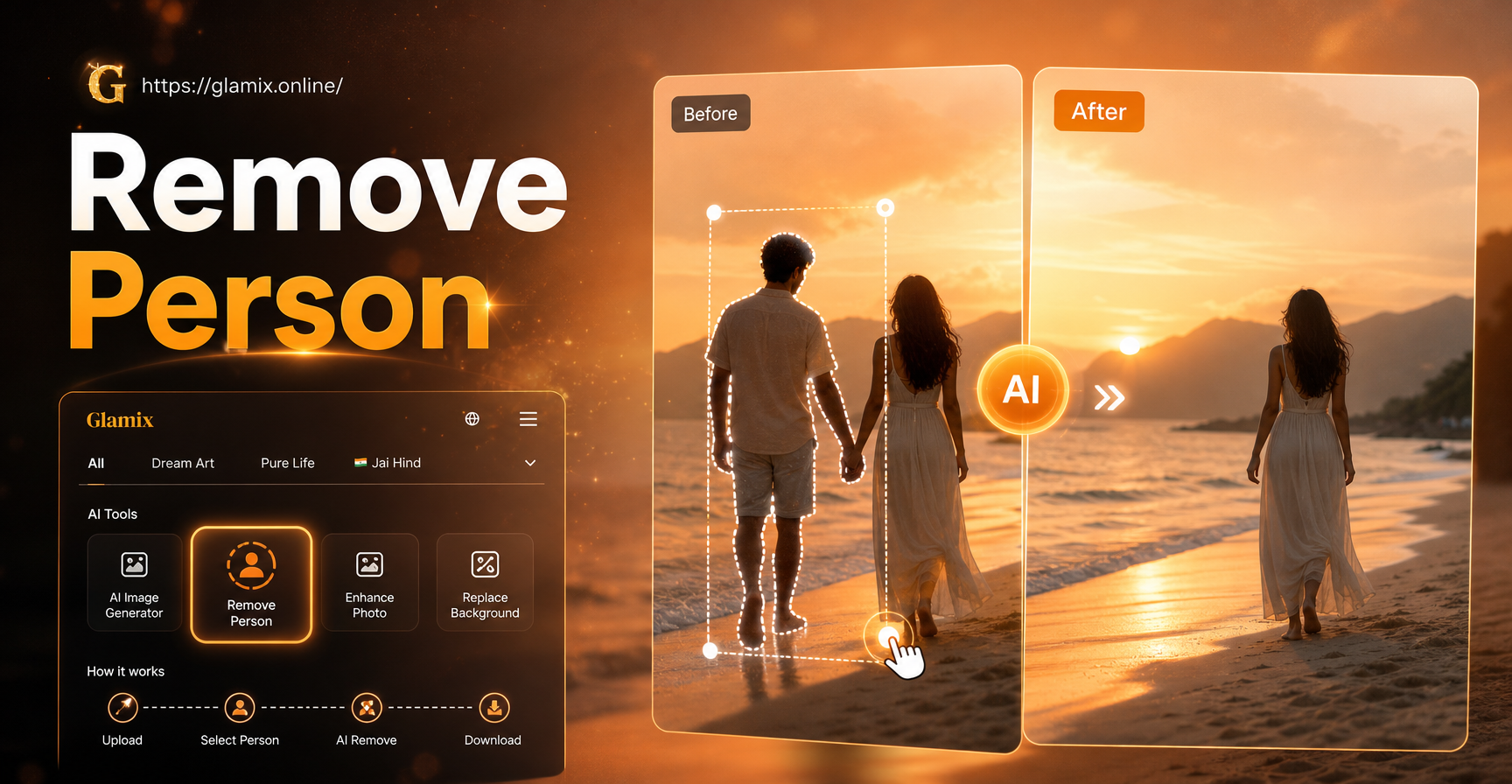
If you have ever taken a group photo and later wished one person was not in the frame, you are not alone. Removing a person from a photo is one of the most common editing requests. The good news is that you can do it with manual retouching tools, AI-powered object removers, or mobile apps that handle the cleanup almost automatically. The best method for you depends on the photo's complexity and how comfortable you are with editing software.
Why Do You Need to Remove a Person From a Photo?
People remove unwanted individuals from photos for several reasons. A photobomber may have ruined an otherwise perfect shot. A former partner may appear in an old picture you want to keep for the memories, but not for the relationship. Privacy concerns also matter, especially when sharing photos online. Sometimes you simply want the focus to stay on one person or a smaller group. Whatever your reason, the goal is a clean background that looks natural.
Manual Retouching Methods in Desktop Editors
If you have access to a desktop editor like Adobe Photoshop, GIMP, or Affinity Photo, you can remove a person manually. These methods give you fine control over the result.
Clone Stamp Tool
The Clone Stamp tool copies pixels from one part of the image and paints them over another. To remove a person, sample a clean area of the background next to the person, then paint over them. Adjust the brush size and hardness to match the surrounding texture. This works best on simple backgrounds like walls, sky, or grass. Be careful not to create obvious repeating patterns.
Healing Brush and Spot Healing
The Healing Brush works like the Clone Stamp, but it blends the copied pixels with the target area's lighting and texture. The Spot Healing Brush is even easier: you simply paint over the person and the tool automatically samples nearby pixels to fill the area. For small blemishes or thin people, spot healing can be enough. For larger subjects, combine it with other tools.
Content-Aware Fill
Content-Aware Fill is a powerful feature in Photoshop that intelligently fills a selected area with surrounding background. To use it, select the person using the Lasso or Quick Selection tool, then go to Edit > Content-Aware Fill. Adjust the sampling area and settings to remove unwanted elements. This method often produces a good starting point that you can refine with healing tools.
AI-Powered Removal Tools
AI-based tools have made object removal much faster. They analyze the image, detect the person, and generate a plausible background behind them. These tools do not require manual sampling.
Online AI Object Removers
Many free online tools let you upload a photo, brush over the person, and download the result in seconds. They are convenient for one-off edits and require no installation. However, online tools may compress the image quality and may not handle complex backgrounds as well as desktop editors.
Mobile Apps With One-Tap Removal
Several mobile apps include a magic eraser or object removal feature. You open the photo, select the person, and tap remove. The app fills the area using AI. These apps are ideal for quick social media edits. After you remove the person, you can often apply filters or other enhancements in the same app.
Generative Fill in Modern Editors
Adobe Photoshop's Generative Fill and similar features use AI to replace a selected area with generated content based on a text prompt. For example, you can select the person, type 'empty bench' or 'clean street', and the AI will create a matching background. This is especially useful when the background is complex and traditional retouching would take too long.
Step-by-Step: Removing a Person in Adobe Photoshop
If you prefer a hands-on approach, follow these steps to remove a person in Photoshop.
Step 1: Open Your Photo and Duplicate the Layer
Open the image and duplicate the background layer by right-clicking the layer and choosing Duplicate Layer. Working on a duplicate preserves the original so you can start over if needed.
Step 2: Select the Person
Use the Quick Selection Tool or the Pen Tool to create a selection around the person. Zoom in and refine the edges. If the person overlaps other elements, use the Lasso tool with a small feather to keep the selection slightly larger than the subject. A 2 to 5 pixel feather helps blend the fill.
Step 3: Apply Content-Aware Fill
With the selection active, go to Edit > Content-Aware Fill. Photoshop shows a preview and lets you adjust the sampling area. Exclude areas you do not want to sample from, then click OK. The person should be replaced with background pixels.
Step 4: Refine With Healing Tools
After the fill, inspect the area for artifacts. Use the Clone Stamp or Healing Brush to clean up any repeated patterns, shadows, or blurry spots. Compare the area with the surrounding background to ensure lighting and texture match.
Step-by-Step: Removing a Person Using a Mobile App
Mobile apps are often the quickest way to remove a person from a photo. Here is a general workflow that applies to most AI-powered eraser apps.
Step 1: Download a Reliable Photo Editor
Choose an app that offers object removal or a magic eraser feature. If you already use an all-in-one AI creation app like glamix, note that its strengths lie in generative style transformations rather than dedicated object removal. For clean removal, a dedicated eraser app may be more effective. After you have cleaned the photo, you can use glamix to apply new styles or animate the result.
Step 2: Use the Object Removal or Magic Eraser Tool
Open the photo and select the removal tool. Brush over the person you want to remove. The app will process the area and fill it with background. Some apps let you adjust the brush size and undo mistakes. For best results, brush only the person and avoid covering important background elements.
Step 3: Review and Export
Zoom in to check the result. If the background looks unnatural, try the removal again or use a healing tool if available. Once satisfied, export the photo at the highest quality available. Save a copy before applying any filters or further edits.
Common Mistakes and How to Avoid Them
Even with good tools, it is easy to create a photo that looks edited. One common mistake is leaving a shadow behind. When you remove a person, check for their shadow on the ground or wall and remove it too. Another mistake is creating visible repeating patterns from the clone stamp. To avoid this, sample from multiple nearby areas instead of one spot. Blurry patches often happen when the fill area is too large or the background is uneven. Use smaller brush strokes and combine tools for a natural result.
Advanced Tips for Complex Backgrounds
Removing a person from a busy background is more challenging. If the person overlaps textured surfaces like brick walls, foliage, or patterned floors, use a combination of selection and healing. Start with a rough selection, apply content-aware fill or AI removal, then use the Clone Stamp to rebuild texture. For multiple people, remove them one at a time and check the background after each step. This prevents large unnatural areas. If the background has repeating patterns, use the Patch Tool to copy a clean pattern over the area. For scenes with perspective, pay attention to scale and alignment so the filled area does not look warped.
Ethical and Privacy Considerations
Before removing someone from a photo, consider the ethical side. If the person is identifiable in the original, removing them without permission may be acceptable for personal use, but do not use the edited image to mislead others. Avoid creating images that could harm someone's reputation or privacy. If you plan to publish the photo online, be transparent about edits when the context matters. Many platforms have policies against manipulated media that could deceive viewers. Use your editing skills responsibly.
AI vs Manual: Which Should You Choose?
The choice between AI and manual removal depends on your skill level and the photo. AI tools are faster and often produce good results on simple backgrounds. Manual tools offer more control and are better for complex scenes. Beginners may prefer a mobile app with one-tap removal, while experienced editors may use Photoshop's Content-Aware Fill and healing tools. You can also combine both: use AI to do the heavy lifting, then refine manually for a flawless finish.
Frequently Asked Questions About Removing People From Photos
Can I remove a person from a photo for free?
Yes. Many free online tools and mobile apps offer basic object removal at no cost. Some may add watermarks or limit export resolution. Free desktop editors like GIMP also include clone and healing tools.
Will the background look natural after removing someone?
It depends on the tool and the photo. Simple backgrounds usually look very natural. Complex backgrounds may require additional manual refinement. Always zoom in and compare the edited area with the surroundings.
Is it legal to remove someone from a photo?
For personal use, it is generally legal. However, using an edited photo to deceive, defame, or infringe on someone's rights can create legal issues. Check local laws and platform policies before publishing edited images.
Can I remove a person from a video?
Removing a person from a video is more difficult because the background changes over time. Some advanced video editing tools offer object removal for short clips, but results vary. For stills, photo removal is much easier.
Get Ready to Edit With Confidence
Now you know several ways to remove a person from a photo, from manual retouching to AI-powered tools. Start with the method that matches your skill level and the photo's complexity. After you have a clean image, you can take it further with creative style transformations. If you are interested in AI image and video generation, download the all-in-one app to explore millions of style filters and turn your cleaned photo into something new.