Why Remove Video Backgrounds?
Whether you are creating a product demo, a talking head video, or a social media clip, isolating your subject from the background gives you full creative control. You can place yourself in a virtual studio, drop in a branded backdrop, or completely remove distractions. Background removal is also essential for e-commerce videos, virtual events, and content that needs to be repurposed across multiple platforms.
Traditional video editing software offers several methods, but modern AI tools have made the process faster and more accessible on mobile devices. In this article, we will explore the most effective techniques and show you how to use the Glamix app as an AI-powered assistant for creative background replacement.
Methods to Remove Video Backgrounds
1. Chroma Key or Green Screen Method
Chroma keying is the classic technique used in film and television. You shoot your subject in front of a solid green or blue screen, then use editing software to remove that specific color and replace it with anything you want. Most professional editing suites like Adobe Premiere Pro, Final Cut Pro, and DaVinci Resolve include a chroma key effect. Mobile apps like CapCut and KineMaster also offer basic green screen removal.
This method works best when the background is evenly lit and the color is highly saturated. Avoid wearing clothing that matches the background color, as it will also be removed. For best results, keep your subject at least a few feet away from the screen to reduce color spill.
2. Manual Masking and Rotoscoping
If you do not have a green screen, you can manually isolate your subject using masks or rotoscoping. In software like After Effects or Premiere Pro, you draw a mask around the subject and animate it frame by frame to follow movement. This is extremely time consuming but gives precise control over complex edges such as hair or transparent objects.
Some editing tools offer semi-automatic rotoscoping powered by AI, such as the Roto Brush in After Effects. These tools analyze the video and automatically track the subject, saving hours of manual work. However, they still require a powerful computer and a learning curve.
3. AI-Powered Background Removal
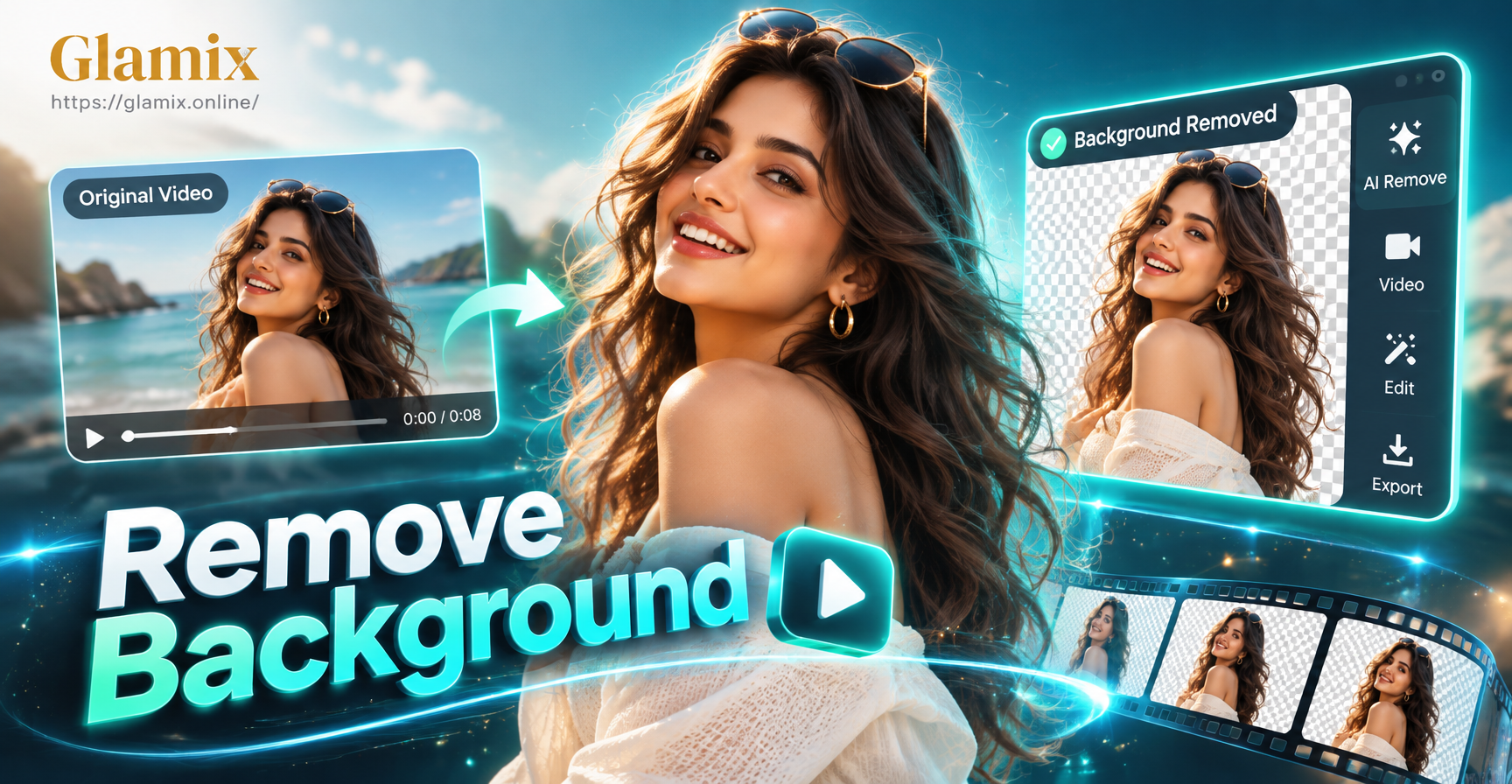
Artificial intelligence has revolutionized background removal by automatically detecting the subject and separating it from the background in a single click. Online tools like Unscreen, Remove.bg, and Runway ML allow you to upload a video and receive a transparent or solid color background version within seconds. These services work well for simple subjects with clear edges, but may struggle with fine details like hair or fast motion.
Mobile apps have also entered this space. While Glamix does not have a dedicated one-click video background remover, its AI video generation features offer a creative workaround. You can upload a photo of your subject with the background already removed, then use the image-to-video tool to animate that subject into a short clip. This method is perfect for creating a video that appears to have no background at all, ideal for product spins, character animations, or social media stickers.
How to Remove Video Background Using AI on Your Phone
If you want to remove a video background entirely on your mobile device, you can combine a few free tools with the Glamix app. The general workflow below focuses on using Glamix for AI-assisted background replacement, not for a dedicated background removal feature. Here is a practical step by step approach.
Step 1: Download Glamix from Google Play
Glamix is available only as a mobile app on Google Play. You cannot use it through a web browser. Install the app on your Android device and sign in or create an account. The app is free to download, and you can explore its AI tools immediately.
Step 2: Prepare Your Subject
Before using Glamix, you need a photo of your subject with a transparent or solid background. You can create this using a free online background remover for images, such as Remove.bg or Adobe Express. Upload your original photo, remove the background, and download a PNG file with transparency.
Step 3: Use Glamix Image-to-Video
Open Glamix and select the image-to-video feature. Upload the PNG file with the transparent background. Choose an animation style from the huge library of filters, such as gentle motion, blink, smile, or turn head. Glamix will generate a short video that preserves the transparency, resulting in a clip where only your subject moves and the background is invisible.
Step 4: Add a Custom Background in Your Video Editor
Once you have a video with a transparent background from Glamix, you can import it into any video editing app that supports transparency, such as CapCut, InShot, or KineMaster. Place the clip on a layer above a new background image or video. The transparent areas will show the new background, completing your background replacement.
Alternative: Glamix Style Transfer
If you do not need full transparency but simply want to change the look of the background, you can use Glamix's image-to-image style transfer. Upload your original photo, choose a style filter that matches your desired background aesthetic, and generate a new image. Then use Glamix's image-to-video to animate that styled image. This gives you a video where the background has been creatively repainted without any manual masking.
Common Challenges and Solutions
Removing video backgrounds is not always perfect. Here are the most frequent issues you will encounter and how to fix them.
- Jagged edges around hair: AI removal often creates rough edges. Use a feathered mask or refine the edges in a photo editor before importing into Glamix.
- Subject partially removed: If your subject wears a color similar to the background, the algorithm may remove parts of them. Increase the contrast between subject and background or manually adjust the mask.
- Motion blur in generated video: Glamix image-to-video may produce slight blur if the subject moves too fast. Choose a slower animation style or reduce the motion intensity.
- Background color spill: When using green screen, a green tint may appear on the subject. Use a spill suppressor filter in your editor after keying.
- File format not supporting transparency: Ensure you export your Glamix video in a format that preserves transparency, such as WebM or MOV with alpha channel. Some editors require ProRes 4444.
Frequently Asked Questions
Below are quick answers to common questions about removing video backgrounds.
Can I remove a video background for free on my phone?
Yes, you can combine free image background removers with Glamix's image-to-video feature. Prepare a transparent PNG, animate it in Glamix, then composite it over a new background in a free video editor like CapCut.
Does Glamix have a dedicated background remover?
No, Glamix does not offer a one-click video background removal tool. However, its image-to-video and style transfer features can be used creatively to replace or remove backgrounds when combined with other apps.
What video formats support transparency?
Common formats that support alpha channels include WebM, MOV with ProRes 4444, and AVI with RGBA. Check your editing app's export settings to ensure transparency is preserved.
How long does it take to remove a video background using AI?
Simple AI removal for a short clip can take under a minute. Manual rotoscoping may take hours. Glamix image-to-video generation typically completes in 30 to 60 seconds depending on the style and length.
Can I remove background from a live action video without a green screen?
Yes, AI tools like Unscreen or Runway ML can automatically detect the subject without a green screen. However, results may vary with complex backgrounds or fast movement. For best results, shoot your subject against a plain, contrasting background.
Conclusion
Removing the background of a video opens up endless creative possibilities. Whether you use a traditional green screen, manual masking, or AI-powered tools, the right method depends on your project and available resources. If you are working on a mobile device, the Glamix app offers a flexible AI toolkit for animating subjects with transparent backgrounds or restyling existing backgrounds. Download Glamix from Google Play today and start creating professional looking videos without a complex editing suite.