Why You Might Need to Remove a Person From a Photo
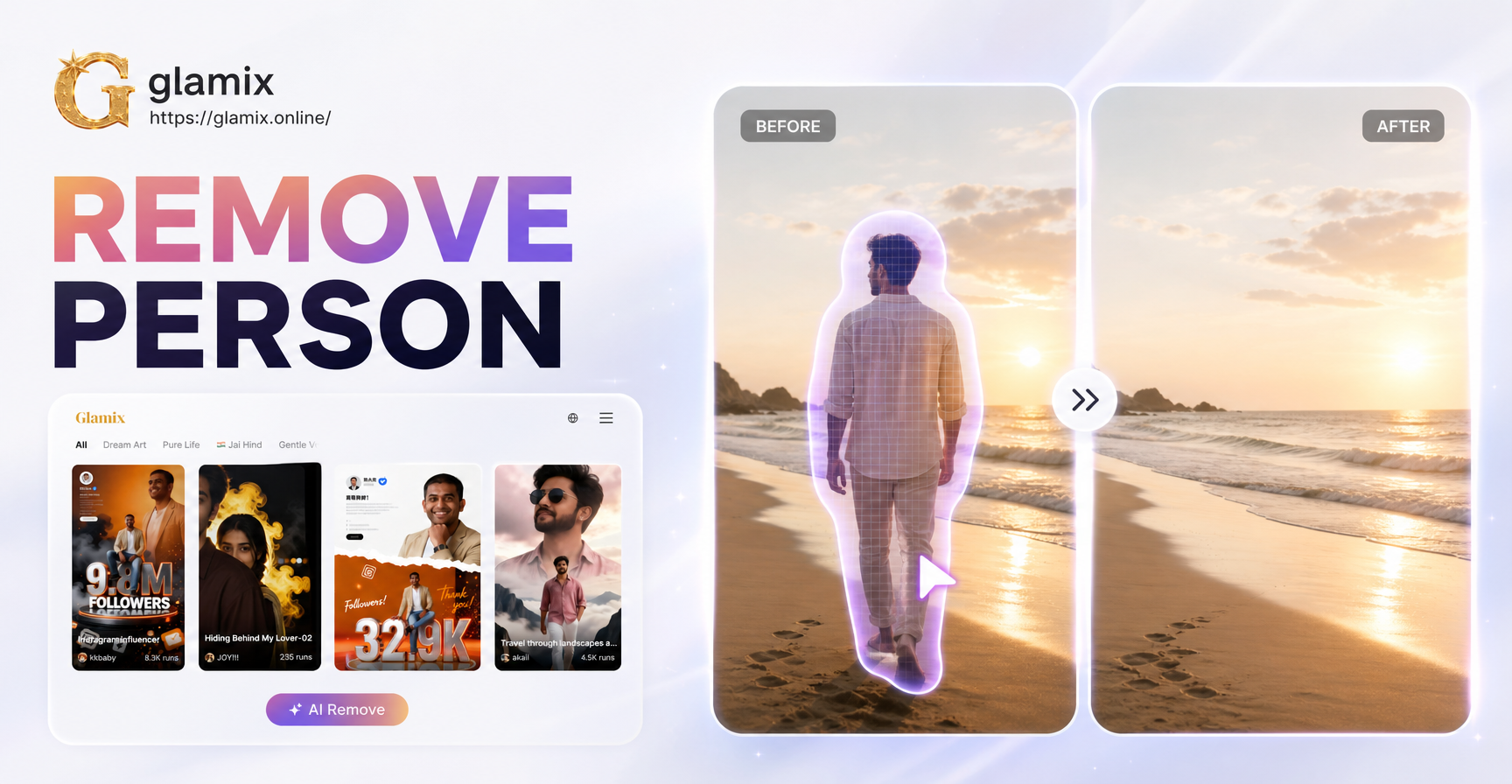
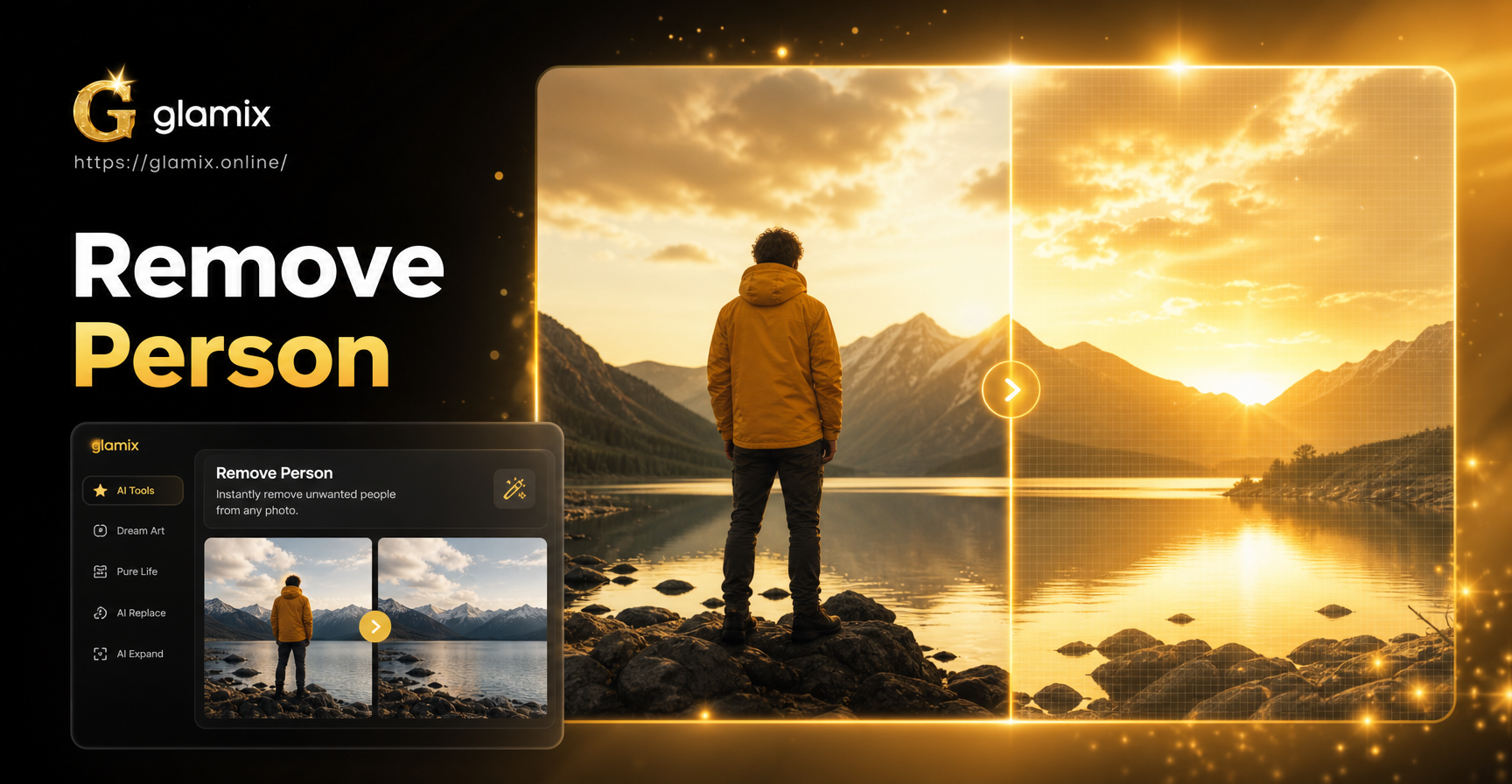
Almost everyone has a photo ruined by an unexpected photobomb, an ex-partner standing in the background, or a stranger walking through a perfectly framed shot. Removing a person from a picture used to require professional Photoshop skills and hours of manual cloning. Today, AI powered editing tools can do most of the heavy lifting automatically. Whether you need to fix a family portrait, clean up a travel snapshot, or prepare an image for a social media post, understanding how to remove someone from a photo is a valuable skill.
The process is not just about erasing a person. It is about filling the empty space with believable background details, matching the lighting, and keeping the photo looking natural. AI inpainting and generative fill algorithms are designed to analyze the surrounding pixels and recreate what might have been behind the person.
How AI Person Removal Works
AI photo removal relies on a technique called inpainting. When you select a person or any unwanted object, the AI looks at the surrounding area and predicts what the background should look like. It generates new pixels that blend seamlessly with the rest of the image. Some tools use generative fill, which goes a step further by creating entirely new background elements based on a text prompt or learned context.
Here is what happens behind the scenes. First, the app detects edges and textures near the selection boundary. Then it samples patterns from the rest of the photo. Finally, it synthesizes new content that matches the lighting, color, and perspective. The result is often so convincing that you cannot tell an edit was made.
Many mobile apps now offer this technology. You do not need a desktop computer or expensive software. A reliable AI photo editor on your phone can remove a person in a matter of seconds. However, not all tools produce the same quality. The next sections explain what to look for.
What to Look For in an AI Photo Editing App
Choosing the right app makes a big difference. Look for these features before you download:
- Object removal tool: A dedicated brush or lasso that lets you select the person precisely.
- Generative fill or inpainting: This is the core technology that replaces the selected area with realistic background.
- High resolution export: You want to save the edited photo without losing quality.
- Edge refinement controls: The ability to feather the selection helps blend the edit naturally.
- Quick processing: AI removal should take only a few seconds on a modern phone.
Some apps also include clone stamp or healing brush tools for manual touch-ups after the AI has done its work. These are helpful for fixing small artifacts or repeated patterns.
Once you have chosen an app, you can follow a simple, repeatable workflow. The steps below work for most AI photo editors, whether you are on Android, iOS, or a desktop browser.
Step-by-Step Guide to Remove a Person From a Picture
Step 1: Download a Reliable AI Photo Editor
Start by installing a well-reviewed AI photo editing app from your device's official app store. Look for one that specifically mentions object removal, inpainting, or generative fill. Avoid apps with poor ratings or a history of aggressive ads. A reputable tool will give you a free trial or a limited number of free exports so you can test the quality before paying.
Step 2: Upload Your Photo
Open the app and import the photo you want to edit. Make sure the image is as high resolution as possible. AI removal works best when there are enough surrounding pixels for the algorithm to learn from. A blurry or heavily compressed photo will produce weaker results because the AI has less information to work with.
Step 3: Select the Person to Remove
Use the object removal or healing tool to brush over the person. Most apps let you adjust the brush size for precision. For a large person, start with a broad stroke to cover the main body, then zoom in and use a smaller brush to include the edges of the person. Avoid selecting too much of the background unless you want the AI to replace that area as well.
Step 4: Let AI Fill the Background
After you confirm the selection, tap the remove or generate button. The AI will analyze the surrounding area and automatically fill the space with predicted background. This usually takes a few seconds. The first result may not be perfect, but that is normal. You can undo and try again with a slightly different selection if the result looks off.
Step 5: Refine Edges and Fine-Tune
Zoom in to inspect the edited area. Look for smudges, repeated patterns, or color mismatches. Use the app's healing brush or clone stamp to smooth out any imperfections. If the AI left a shadow or a remaining limb, re-select only that part and run the removal again. Small manual adjustments often make the biggest difference in the final photo.
Step 6: Export and Save
Once you are satisfied, export the image at the highest available resolution. Save a copy to your phone or cloud storage. If the app allows it, choose PNG or high quality JPEG to preserve detail. Now you have a clean photo with the person removed.
Common Problems and How to Fix Them
AI person removal is powerful, but it is not perfect. Here are the most common issues and practical solutions.
Blurry or smeared background: This happens when the AI does not have enough clear pixels to reference. Fix it by selecting a smaller area around the person and running the removal again. You can also sharpen the final image with a separate editing tool.
Repeated patterns or obvious cloning: If the background is a simple texture like grass or water, the AI may duplicate a pattern too many times. Use the clone stamp tool to manually paint over the repeated area with a different sample.
Lighting mismatch: The new background might be slightly brighter or darker than the rest of the photo. Adjust the exposure or shadows locally with a brush tool. Many AI editors include a dodge and burn option for this purpose.
Leftover body parts or shadows: Sometimes the AI removes the main body but leaves a hand, foot, or shadow behind. Zoom in and select the remaining part with a small brush, then run the removal once more.
Complex backgrounds with many objects: If the person is standing in front of a busy street or a patterned wall, the AI may struggle to fill the space. In that case, try removing the person in smaller sections. Select and remove half of the body, then the other half. This gives the AI more control.
Tips for Natural-Looking Results
- Start with a high resolution photo. More detail gives the AI more data to work with.
- Make a tight selection. Avoid including large areas of clean background unless necessary.
- Use a soft brush edge. A feathered selection blends more naturally with the surrounding pixels.
- Try multiple generations. AI results can vary slightly each time. Generate two or three versions and pick the best.
- Work on a copy of the original. Always keep the unedited photo in case you need to start over.
- Check at 100 percent zoom. Small artifacts are invisible when zoomed out but obvious when printed or posted.
After you have removed the person, you might notice the photo feels a little bare. That is a perfect opportunity to use an AI design tool to enhance the image further.
After Removing the Person, Enhance Your Photo with glamix
Once your photo is clean, you can take it to the next level with glamix, an all-in-one AI design app for image and video creation. While glamix is not a dedicated object removal tool, it excels at style transfer, image-to-image generation, and creative editing. Upload your edited photo and apply one of over a million style filters to give it a fresh look. You can transform a plain background into a cinematic scene, anime artwork, or a Ghibli style illustration. The image-to-image feature preserves the main subject while adjusting colors and atmosphere based on your prompt.
For example, after removing a person from a beach photo, you could use glamix to turn the remaining landscape into a stunning watercolor painting. Or you could generate a new background that matches the mood of the original scene. The app is available on Google Play and is designed for quick, one-tap creative transformations. It is a great companion tool for anyone who edits photos on a mobile device.
Frequently Asked Questions
Can I remove a person from a photo on my phone?
Yes. Many mobile apps now include AI inpainting and object removal tools. Follow the steps in this guide and you can do it directly on your phone without any desktop software.
Is AI person removal free?
Some apps offer a limited number of free edits or a free trial. For frequent use, you may need a subscription or one-time purchase. Check the app's pricing before you start.
Does AI removal always work?
It works best on photos with simple or moderately complex backgrounds. Very busy scenes with many overlapping objects may require manual touch-ups. The result improves with a clean selection and a high resolution source image.
What is the best app to remove a person from a picture?
The best app depends on your needs. Look for one with a dedicated object removal brush, generative fill, and high resolution export. After trying a few, you will quickly find the one that feels most intuitive.
Can I remove multiple people from the same photo?
Yes. Remove them one at a time. After the first person is gone, save the image, reload it, and repeat the process for the next person. This gives the AI a cleaner background to work with for each step.
Final Thoughts
Learning how to remove a person in picture opens up a world of creative possibilities. With the right AI editing app, you can clean up photos in seconds and then use a tool like glamix to transform them into something extraordinary. Start with a clear photo, make a precise selection, and refine the result patiently. The more you practice, the more natural your edits will look. Download an AI photo editor today and give your favorite pictures a second chance.