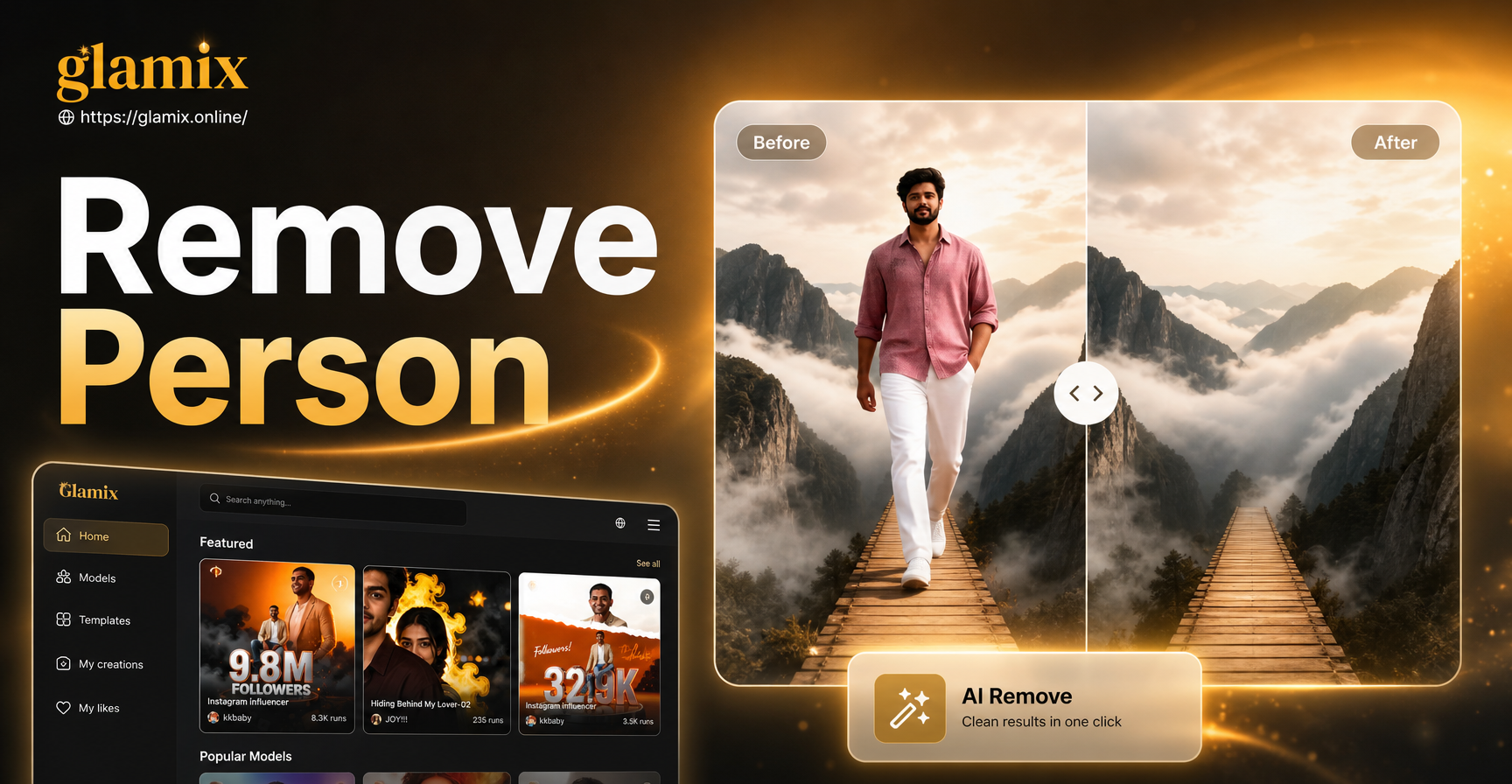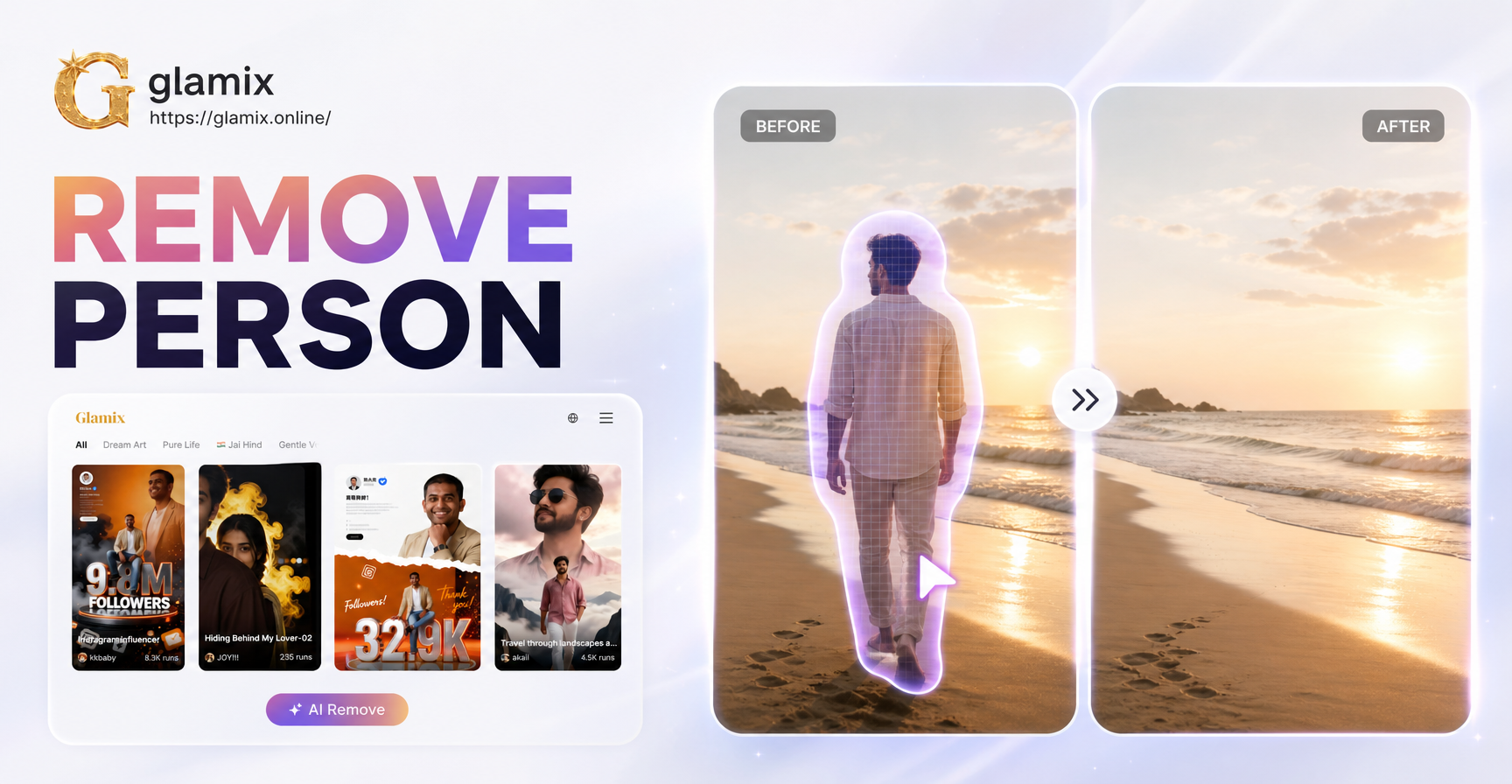
Removing someone from a picture used to require expensive software and hours of careful pixel work. Today, you can do it on your phone in under a minute or use professional tools for more complex edits. Whether you want to erase an ex from a favorite travel photo, delete a photobomber from a group shot, or simply clean up a family portrait, the right method depends on the image, the background, and how much of the person overlaps other subjects.
This guide explains five reliable ways to remove someone from a picture, from quick crops to AI powered healing. You will also find tips for making the edit look natural and advice on what to do when the background is complicated.
Method 1: Crop the Person Out
The simplest way to remove someone from a picture is to crop them out. This works best when the unwanted person is near the edge of the frame or when the photo still looks balanced after you tighten the composition. Open any photo editing app on your phone or computer, select the crop tool, and drag the edges inward until the person is no longer visible.
Cropping is fast and does not require any special skills. However, it has limitations. You may lose important parts of the scene, change the aspect ratio, or reduce the image resolution. If the person is in the middle of a group or if the background is important to the photo, cropping is not the best option. Use this method only when the person is at the edge and the remaining composition is still strong.
Method 2: Use Content-Aware Fill in Photoshop
Adobe Photoshop includes a tool called Content-Aware Fill that can remove objects and people by analyzing the surrounding pixels. This method is ideal for medium to large subjects on relatively uniform backgrounds, such as grass, sand, sky, or walls.
To use Content-Aware Fill, open your image in Photoshop and duplicate the background layer. Use the Lasso tool, the Pen tool, or the Quick Selection tool to select the person you want to remove. Include a small margin around the subject so the algorithm has enough reference pixels. Then go to Edit and choose Content-Aware Fill. Photoshop opens a preview window where you can adjust the sampling area. Paint over the regions you do not want Photoshop to sample from, such as other people or objects you want to preserve. Click OK when the preview looks right.
After the fill, zoom in and inspect the edges. Use the Spot Healing Brush or the Clone Stamp tool to fix any repeated textures, smudges, or blurred areas. Content-Aware Fill works well on simple backgrounds but can struggle with complex patterns, shadows, or overlapping limbs. In those cases, combine it with manual cloning for a better result.
Method 3: Use AI Removal Tools on Your Phone
Several phone apps now offer AI powered removal tools that can erase people with a single brush stroke. Google Photos has a Magic Eraser feature on Pixel devices and many Android phones. Samsung Gallery includes an Object Eraser. Snapseed has a Healing tool that works on both Android and iOS. Third party apps like TouchRetouch and Fotor also provide dedicated object removal features.
To use these tools, open the app and select the heal, erase, or object removal option. Brush over the person you want to remove. The app automatically analyzes the surrounding area and fills in the space with matching texture. For small people in the background or photobombers, this usually works in seconds. In Snapseed, tap Tools, then Healing, and brush over the person. In TouchRetouch, select Object Removal, brush over the person, and tap Go. For larger subjects, you may need to apply the tool in small sections and repeat the process.
Keep in mind that AI removal tools are not perfect. They can produce weird artifacts, stretched patterns, or ghosting if the background is complex. Zoom in after the edit and use a healing brush or patch tool to tidy up any remaining issues. The results are often good enough for social media or casual use.
Method 4: Manually Clone and Patch in Editing Software
When automated tools fail, manual cloning gives you the most control. Photoshop, GIMP, Affinity Photo, and other editors include a Clone Stamp tool and a Healing Brush tool. These let you sample a clean area of the image and paint over the unwanted person pixel by pixel.
To use the Clone Stamp, select the tool and hold the Alt key (or Option key on Mac) to sample a source area that matches the background you want to cover the person with. Release the key and paint over the person. Use a soft brush with low opacity for smoother blending. Re-sample frequently to avoid repeating the same texture. The Healing Brush works in a similar way but automatically blends the sample with the surrounding lighting and color.
This method takes more time, but it is often the only way to handle difficult edits, such as removing someone who is standing in front of a patterned wall or overlapping another person. Work at a high zoom level and use multiple small brush strokes instead of one large stroke. If the edit starts to look unnatural, undo a step and try a different source point.
Method 5: Generate a New Background with AI
Sometimes the background is so complex that removing a person leaves an obvious hole or a distorted area. In those cases, you can use an AI image tool to generate a new background or restyle the entire photo. Instead of trying to recreate the missing pixels, you replace the whole scene with something fresh.
Start by removing the person using any of the methods above. Even if the edit is not perfect, the AI tool can cover minor inconsistencies by applying a new style or generating new background elements. Glamix is an AI design app available on Google Play that offers image to image editing and over a million style filters. After you remove the unwanted person, upload the edited photo to Glamix and choose a style template. The AI will blend the remaining areas and give the photo a cohesive look. This is a practical way to salvage a difficult edit without spending hours on manual cloning.
Tips for Clean, Natural Looking Edits
No matter which method you use, a few habits will help your edit look professional.
Work on a Duplicate Layer or Copy
Always keep the original photo untouched. In editing software, duplicate the background layer before you make any changes. On a phone app, use the Save a Copy option if available. This way you can start over if the edit goes wrong, or compare the before and after versions side by side.
Match Texture and Shadows
After removing a person, the filled area may look flat or too smooth. Add back some noise or grain to match the surrounding photo. If the person cast a shadow, remove the shadow too, or the edit will look obviously altered. In Photoshop, you can use the Add Noise filter at a low amount to match the image grain.
Zoom In and Check the Details
Most removal mistakes are only visible when you zoom in. Check the edges, patterns, and lighting at 100 percent magnification. If you see repeated patterns or blurry smudges, fix them with a healing brush. Small errors are less noticeable on a phone screen, but they become obvious in printed photos or large displays.
What to Do When the Person Overlaps Another Subject
Removing someone who partially overlaps another person is one of the hardest edits. If the overlap is small, such as an arm or a shoulder, use the Clone Stamp tool to reconstruct the missing part from the other subject. Sample from a similar area on the other person and paint carefully.
If the overlap is large, you may need to rebuild the second subject using content from another photo of the same scene or use a combination of AI removal and manual painting. In some cases, it is easier to crop the photo so the overlapping area is less prominent, or to replace the entire background so the overlap is no longer visible.
Use Glamix to Polish Your Edited Photo
Once you have removed the unwanted person, the photo may still look a little off. This is where Glamix can help. Glamix is an all in one AI design app for generating and editing images and videos. It includes text to image, image to image, and text to video features, along with a library of over a million style filters. You can upload your edited photo and apply a style transfer to hide small imperfections and create a consistent, social media ready look.
For example, if the removal left a slightly textured patch on a wall, applying a subtle artistic filter can make the whole image look intentional. If you prefer a completely new look, Glamix can generate a new background or restyle the photo into an anime, watercolor, or cinematic style. The app is mobile only and available on Google Play, so it is convenient for quick edits on the go. While Glamix is not a dedicated object removal tool, it is a useful finishing step after you remove someone from a picture using the methods above.
Conclusion
Removing someone from a picture is no longer a difficult or expensive task. The right method depends on the photo, but you can almost always find a solution. Quick crops work for edge subjects. Content-Aware Fill and phone AI tools handle most photobombers. Manual cloning gives you control over complex edits. And if the background is too tricky, AI image generation can replace the whole scene or polish the result.
Start with the easiest method and move to more advanced tools only if needed. Keep the original file safe, zoom in to check your work, and use tools like Glamix to give the final photo a clean, professional finish. With a little practice, you will be able to remove unwanted people from your pictures quickly and make your favorite memories look the way you want.