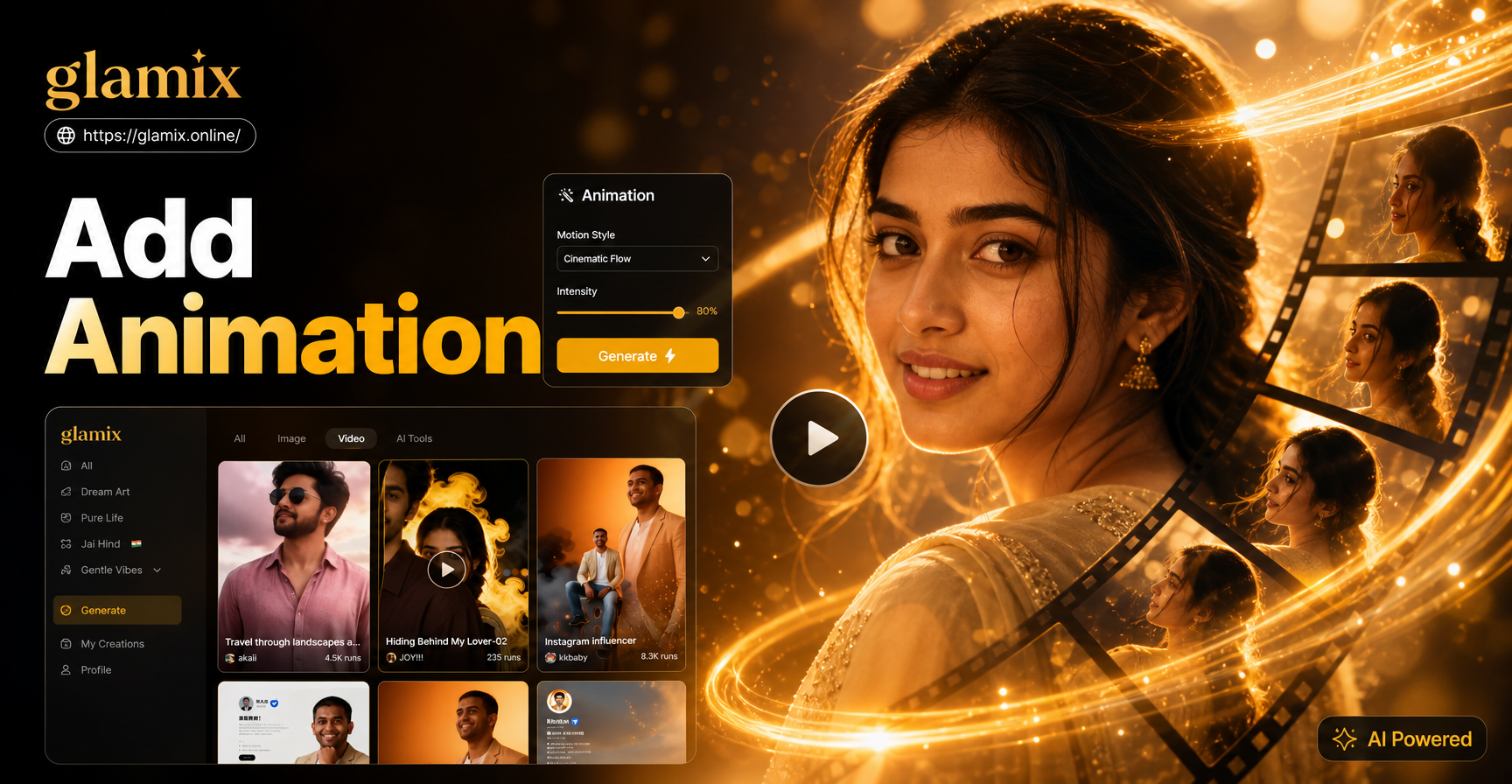
Adding animation to video used to mean learning a desktop editor, placing keyframes, and waiting through long renders. Today a mobile app can handle the heavy lifting. You provide a text description, a still image, or a short source idea, and the AI generates motion that fits your scene. This guide explains how to add animation in video with Glamix, a mobile app available on Google Play. You will learn how to choose the right source, write effective motion instructions, apply a style, and export a clean result.
What Does It Mean to Add Animation in Video?
Animation in video means adding movement to a clip or a still frame. That movement can be a camera pan, a character turning their head, falling snow, or a subtle facial expression. The goal is to make the content feel alive and hold attention. With AI tools, you do not need to draw frames or set manual keyframes. Instead, the model predicts realistic motion from your prompt and reference image.
Three Ways to Add Animation in Video with Glamix
Text to Video Animation
Text to video turns a written scene description into a moving clip. You type a short prompt, choose a style, and let the AI generate the video. This method works well for abstract ideas, product demos, and narrative shots where you do not have a source photo. The key is to describe the action, the subject, and the setting in one or two sentences.
Image to Video Animation
Image to video animates a photo you upload. The AI keeps the subject recognizable while adding motion. This is ideal for turning a portrait into a smiling or blinking clip, or making a product photo rotate slowly. You can also use it to add motion to landscapes and still life scenes.
Photo Revival and Face Animation
Older photos can be brought back to life with subtle facial motion. Glamix can animate eyes, mouth, and head position. This is popular for family archives and historical images. The app also handles group photos by identifying each face separately, so multiple people remain distinct rather than blending together.
How to Add Animation in Video Step by Step
Step 1: Install the App and Open a Video Tool
Install Glamix from Google Play and open it. On the home screen, select the video generation option that matches your source. If you have a written idea, choose Text to Video. If you have a photo, choose Image to Video. If you want to revive an old portrait, choose the photo animation path.
Step 2: Choose Your Animation Source
Decide whether your animation will start from text or an image. Text gives you more creative freedom but requires a clear prompt. An image gives the AI a stable reference, which often leads to more consistent results. If you have both, start with image to video and add a simple motion instruction.
Step 3: Write a Clear Motion Prompt
Strong motion words help the AI understand timing and direction. Use phrases like slow pan, gentle zoom, soft blink, subtle smile, or camera orbits the subject. Keep the prompt focused on one main action. Avoid contradictory actions in the same prompt, such as moving forward and sitting still at the same time.
Step 4: Select a Style Filter and Generate
After entering your prompt or uploading your photo, choose a style filter. Glamix offers realistic footage, anime, 3D clay, cinematic, watercolor, and many other looks. The style filter changes the visual appearance, not the motion. Generate the video and let the app process. Most clips take only a few seconds to a minute depending on length and complexity.
Step 5: Preview, Adjust, and Export
Preview the result. If the motion feels too fast, add slow motion to your prompt or reduce the clip length. If the subject looks distorted, use a cleaner source image or simplify the action. Once you are satisfied, export the video to your phone gallery and share it directly to social platforms. No desktop editing or extra rendering tools are required.
Example Motion Prompts You Can Adapt
Use these prompts as starting points. Change the subject, clothing, and setting to match your scene. Keep the motion phrase at the beginning or end of the sentence for clarity.
- A young woman in a yellow raincoat slowly turns her head and smiles while rain falls behind her
- A black ceramic mug slides across a wooden table as steam rises in soft morning light
- A golden retriever tilts its head and blinks while standing in a sunny park
- A crowded city street at night with cars moving in slow motion and neon signs flickering
- An old photograph of a man in a suit comes alive as he blinks and smiles gently
- A bowl of ramen with steam rising and chopsticks lifting noodles in slow motion
Tips for Natural Looking Animation
Keep the Source Clean
Use a high resolution photo with good lighting. Blurry or heavily compressed images often lead to warped output. If you are working with an old photo, scan it at the highest quality available before uploading.
Use One Main Action
A single clear action, such as a smile or a slow pan, looks more natural than multiple competing movements. If you want more complex motion, generate several short clips and combine them later in a video editor.
Start Short and Preview Often
Short clips of three to five seconds usually look cleaner than long ones. Generate a short test before committing to a longer sequence. Preview each result and change only one element at a time, such as the motion word or the style filter.
Match the Style to the Content
Choose a style that supports the mood of your scene. A cinematic filter works for dramatic product shots, while a watercolor or anime filter may suit a playful social media post. If the subject looks too different after applying a style, switch to a less aggressive filter.
Common Problems and How to Fix Them
The Video Looks Warped
This usually happens when the source image is blurry, heavily compressed, or has multiple overlapping subjects. Replace it with a sharper photo and simplify the scene. Also reduce the number of moving parts in your prompt.
The Motion Is Too Fast or Too Slow
Add a speed word to your prompt. Use slow motion, gentle, or gradual to slow down movement. Use quick, fast, or sudden to speed it up. If the app offers duration controls, adjust the clip length as well.
The Subject Changes Identity
If the output no longer looks like your original subject, make the prompt more specific about appearance. Mention hair color, clothing, and camera angle. For image to video, use a high quality photo and avoid extreme style filters that alter facial structure.
The Background Moves but the Subject Stays Still
State the subject motion directly. For example, write the woman steps forward instead of only describing the background. Put the subject at the beginning of the prompt so the AI gives it priority.
Conclusion
Adding animation to video no longer requires a steep learning curve. With Glamix, you can turn a text idea or a still image into a moving clip in minutes. Focus on one clear motion, choose a matching style, and refine the prompt until the result feels natural. Download the app from Google Play and start creating animated videos today.