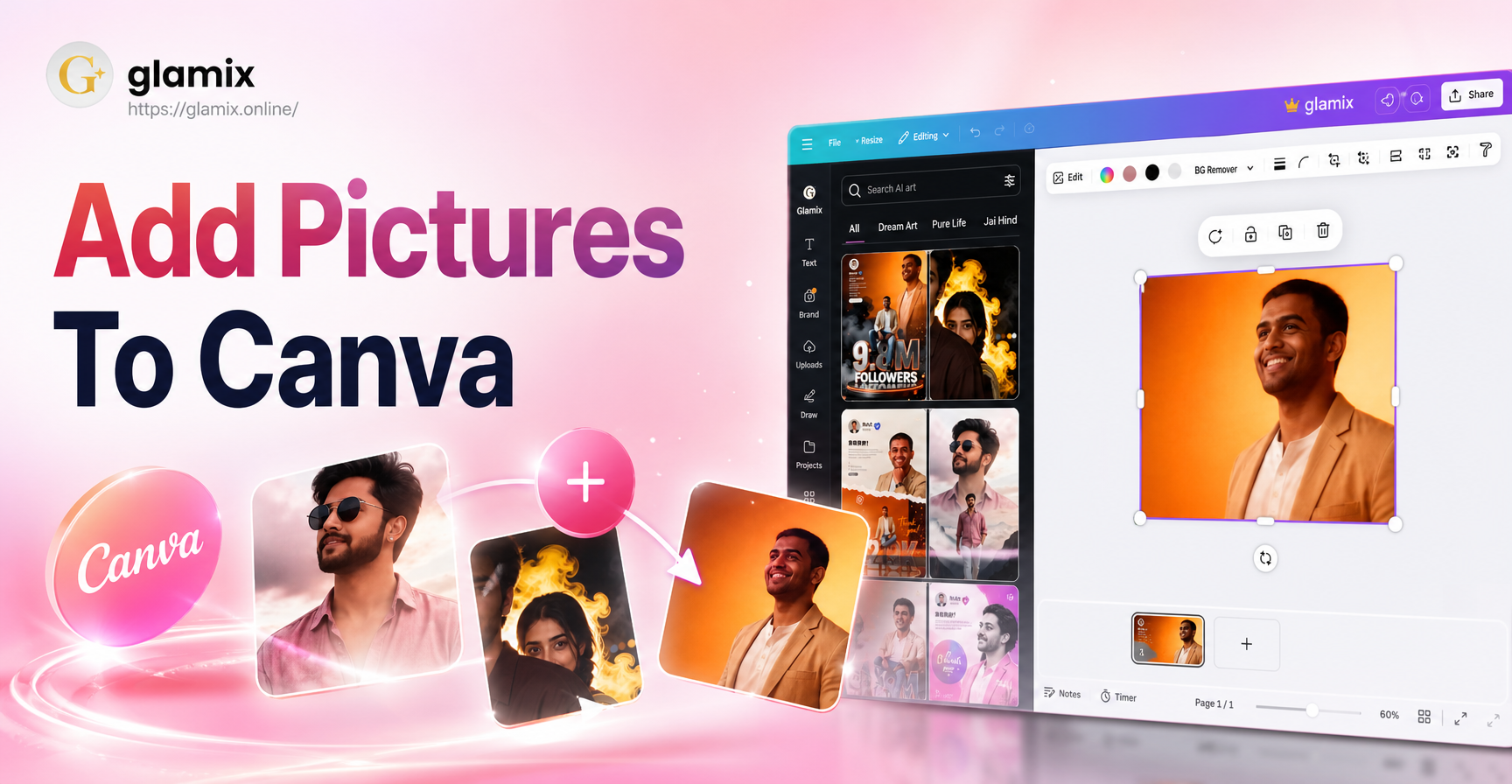
If you have ever stared at a blank Canva canvas wondering where to start, learning how to add pictures to Canva is the first real step. Canva makes it simple to bring your own photos, stock images, and AI generated visuals into any design. This guide covers the exact steps for desktop and mobile, plus fixes for common upload problems and practical layout tips.
How to Add Pictures to Canva: The Basics
Before you upload anything, open an existing design or create a new one. You can add pictures from your computer, from the Canva library, from your phone, or by dragging files directly onto the canvas. The method you choose depends on where your image is stored.
Step 1: Open or Create a Design
Log in to Canva on your browser or open the mobile app. Click Create a design and choose a format such as Instagram Post, Presentation, or Custom Size. If you already have a project, open it from your recent designs. Your pictures will be added to this canvas.
Step 2: Go to the Uploads Tab
In the left sidebar, click Uploads. Here you can see images you have already uploaded. To import a new picture, click the Upload files button. A file browser will open on your computer. Select one or more images and click Open. Canva will show a progress bar while the picture uploads. Once finished, the image appears in your Uploads folder.
Step 3: Drag and Drop the Picture onto the Canvas
Click the uploaded thumbnail and drag it onto your design. You can also click the image once and it will be added to the center of the canvas. From there, drag the corners to resize it. Hold the Shift key while resizing to keep the original proportions. Click and drag inside the picture to move it around.
Step 4: Add Pictures from the Canva Library
If you do not have your own photo, use the built in library. Click Photos in the left sidebar. Use the search bar to type keywords like sunset, coffee, team meeting, or product. Browse the results and click a photo to add it to your design. Many photos are free, while some premium images display a crown icon and require Canva Pro.
Step 5: Upload from Your Phone or Tablet
Open the Canva app and tap the plus button on the canvas. Choose Uploads, then tap the upload icon. Select a photo from your device gallery, Google Photos, or Files. Once the photo uploads, tap it to place it on the canvas. You can also take a new photo directly by selecting Camera.
How to Replace, Delete, or Rearrange Pictures
After you add pictures to Canva, you will often need to adjust them. Click any picture on the canvas to select it. A toolbar appears at the top with options like Crop, Flip, Position, Transparency, and Delete.
Replace a Picture Without Losing Position
Select the picture you want to replace. Click the Replace button in the top toolbar, then choose a new image from Uploads or the library. The new picture automatically takes the same size, position, and rotation as the previous one. This is useful when you are updating product photos or profile pictures.
Delete a Picture
Select the picture and press the Delete key on your keyboard or click the trash icon in the toolbar. On mobile, tap the picture and choose the trash icon. If you delete the wrong picture, use the undo button in the top corner immediately.
Rearrange Layers
Canva stacks pictures in the order you add them. If a picture is hidden behind another element, select it, click Position, and choose Bring Forward or Send Backward. You can also use the layers tab to drag elements into the correct order.
How to Add Pictures to Canva Frames and Grids
Frames and grids let you place pictures into predefined shapes and collages. This is one of the fastest ways to make a design look professional.
Add a Picture to a Frame
Click Elements in the left sidebar and search for Frames. Choose a frame such as a circle, arch, or heart. Drag the frame onto the canvas. Then drag your uploaded picture from the Uploads tab and drop it inside the frame. Canva automatically crops the picture to fit the shape. Double click the picture inside the frame to reposition or resize it.
Add Pictures to a Grid
Search for Grids in the Elements tab. Pick a grid with the number of cells you need, such as a two photo or three photo layout. Drag the grid to the canvas. Then drag a different picture into each cell. Grids keep your images evenly spaced and aligned, which is perfect for mood boards, team pages, and product comparisons.
How to Add Pictures from External Sources
Canva also connects to cloud services. In the Uploads tab, you can import from Google Drive, Dropbox, Instagram, Facebook, and other connected apps. Click the source icon, sign in if needed, and select the images you want to bring in. This saves time because you do not need to download files to your computer first.
Common Problems When Adding Pictures to Canva and How to Fix Them
Even simple uploads can fail. Here are the most frequent issues you may see and what to do about them.
Unsupported File Format
Canva accepts JPG, PNG, SVG, WEBP, and GIF files for most designs. If you are trying to upload a HEIC photo from an iPhone, convert it to JPG first. You can use your phone's built in save as JPEG option or an online converter. Keep SVG files for logos and graphics, because they work best when you need a transparent background.
File Size Limit
Canva supports images up to 50 MB for most accounts. If your picture is too large, compress it before uploading. You can use a free image compressor or resize the image in your device's photo editor. For print designs, keep resolution at 300 DPI but reduce the file dimensions if you do not need a giant canvas.
Upload Stuck or Not Showing
If an upload stays at 0 percent or fails, check your internet connection and refresh the page. Clear your browser cache or restart the Canva app. If you are using a work or school network, some file sharing services may be blocked. Try switching to a personal network or using your phone as a hotspot.
Blurry Pictures in the Design
A picture can look sharp on your device but blurry after you add it to Canva. This usually happens when you resize a small image larger than its original dimensions. To avoid this, upload the highest resolution version you have. If a picture is already blurry, replace it with a larger file or use the Enhance feature in Canva Pro to sharpen details.
Tips for Using Pictures Effectively in Canva
Adding pictures is only the beginning. These practical tips help you get a cleaner, more professional result.
Use a Consistent Style
Choose pictures with similar lighting, color tone, and subject style. If you mix bright product shots with dark moody photos, the design can feel disconnected. Use Canva's photo filters or the Adjust tool to match brightness, contrast, and saturation across images.
Prioritize High Resolution Images
Always start with the largest file available. For social media posts, 1080 by 1080 pixels or larger is a safe minimum. For printed designs, use images that are at least 2000 pixels on the longest side.
Leave Space for Text
When you place a picture, think about where your headline or body text will go. Position the subject off center or leave an empty area in the background. This makes text easier to read and prevents the need for heavy overlays.
Use Transparency and Frames
Instead of placing a hard edged photo directly on a background, try a frame or a soft edge. Adjust transparency to blend a picture into the background, or use a circular frame to make a profile photo feel more polished.
What If You Need a Custom Picture for Your Canva Design?
Sometimes the perfect picture does not exist in your gallery or the stock library. In that case, you can generate a custom image with an AI tool and then upload it to Canva. glamix is a mobile app that lets you create AI images, style transfers, and animations from a text prompt or an existing photo. You can generate a product mockup, a stylized portrait, or a background scene, save it to your phone, and add it to Canva using the same Uploads steps above. This workflow helps when you need a specific visual that stock sites do not offer.
To do this, open glamix, choose a style template, enter a short description, and generate the image. Save the result to your device. Then open Canva, go to Uploads, upload the saved image, and drag it onto your canvas. Because both apps work with standard JPG and PNG files, the process is straightforward.
Frequently Asked Questions About Adding Pictures to Canva
Can I add pictures from my camera roll to Canva?
Yes. On the Canva mobile app, tap the plus button on the canvas, select Uploads, and tap the upload icon. Choose your photo from the device gallery, Google Photos, or Files. The picture will appear in your uploads and can be placed on the canvas immediately.
How many pictures can I upload to Canva at once?
You can select and upload multiple pictures at the same time. On desktop, hold Ctrl or Command while clicking multiple files. On mobile, tap and hold a photo, then select additional photos. The upload limit depends on your available storage and individual file sizes.
Why does my photo have a white background in Canva?
If your source image is a JPG, it has a solid background by nature. To get a transparent background, upload a PNG file. Canva Pro also includes a Background Remover tool. Select your photo, click Edit Photo, and choose Background Remover to erase the white background automatically.
Can I add pictures to Canva without an account?
No. Canva requires a free account to create and edit designs. Sign up with an email address, Google account, or Facebook account. Once you are signed in, you can upload pictures and start designing immediately.
Does Canva reduce image quality when I download?
Canva preserves the quality of your uploaded images when you download in PNG or PDF Print formats. For JPG downloads, set the quality slider to the highest setting. If you need a transparent background, choose PNG as the download format.
Final Thoughts on How to Add Pictures to Canva
Adding pictures to Canva is a straightforward process, but the details matter. Whether you upload from your computer, phone, or cloud, the key steps are to open the Uploads tab, select your file, and drag it onto the canvas. From there you can crop, replace, frame, and layer your images to build a more polished design. Keep your file formats and resolution in mind, and you will avoid the most common upload issues. When you need a custom visual, generate one with an AI app like glamix and bring it into Canva with the same simple workflow.