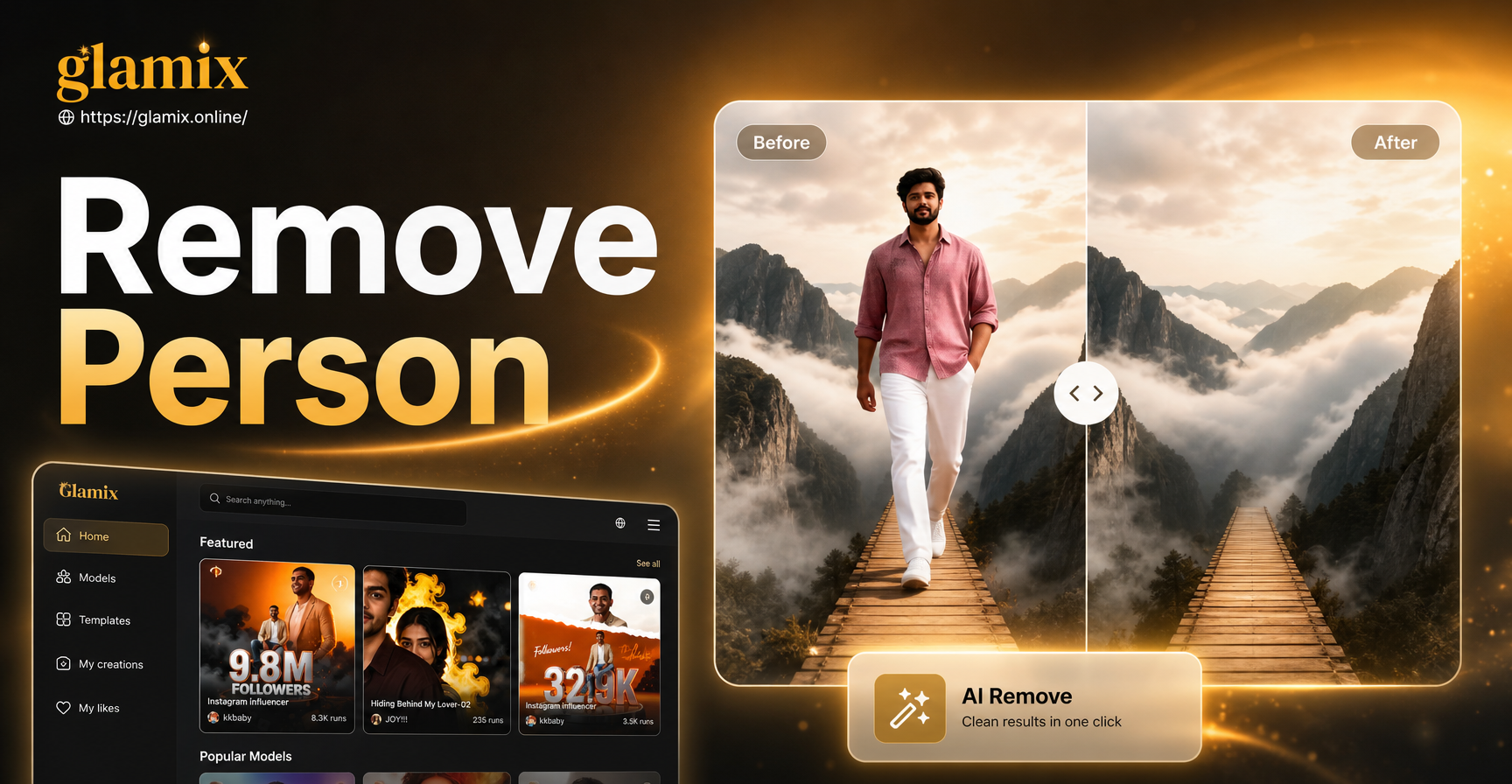
Removing the background from an image is one of the most useful editing skills you can learn. Whether you are preparing a product photo for an online store, creating a transparent logo, designing a thumbnail, or isolating a person for a new scene, a clean cutout makes the difference between a professional result and an amateur one.
This guide explains how to remove the background from an image using several practical methods. You do not need expensive software or design experience. You can use free online tools, built in phone features, professional editors, or AI powered apps. By the end, you will know exactly which method fits your photo and how to avoid common mistakes.
Why Remove the Background From an Image?
Removing the background isolates the main subject so you can place it on a solid color, a different photo, or a transparent canvas. For product sellers, a clean white background increases buyer trust and meets marketplace requirements. For content creators, transparent PNG cutouts make thumbnails, overlays, and social media graphics easier to design. For photographers, background removal allows you to replace a dull or distracting backdrop without reshooting.
The best method depends on three factors: the complexity of the subject edges, the resolution of the original photo, and the final format you need. Simple objects with straight edges are easy to cut out automatically. Subjects with hair, fur, or semi transparent details need more careful edge refinement.
Method 1: Use an Online Background Remover
Online background removers are the fastest option for most people. These tools use AI to detect the main subject and delete the background in seconds. You upload a JPG, PNG, or WebP file, wait a few moments, and download a transparent PNG. Many free tools handle simple photos well, but they may struggle with low contrast, busy backgrounds, or fine hair.
Steps for Online Background Removal
- Choose a reliable free background remover in your browser.
- Upload the image from your device, or drag and drop it into the tool.
- Wait for the automatic subject detection to finish.
- Download the transparent PNG or replace the background with a solid color.
- If the cutout misses details, use the touch up or restore brush to fix edges.
Online tools work best for portraits, product photos, and objects on contrasting backgrounds. For complex images, you may need to combine the automatic result with a manual editor.
Method 2: Use Built In Phone and Computer Tools
Modern phones and computers have built in background removal features that are surprisingly effective. These options cost nothing and keep your image on your device.
iPhone and iPad
Open the photo in the Photos app, touch and hold the subject until a glowing outline appears, then tap Copy or Share and choose Save to Files. The subject is saved as a transparent PNG. This works best when the subject is clearly separated from the background.
Mac
Open the image in Preview, click the Markup toolbar, select Instant Alpha, click and drag over the background area, then press Delete. Repeat as needed and save the image as a PNG. For cleaner results, use the Smart Lasso tool.
Windows
Open the image in the Photos app, click Edit image, select Background, and choose Remove. The app isolates the subject automatically. You can then save the result as a PNG with transparency.
Method 3: Manual Selection in Professional Software
If you need pixel perfect results, use a desktop editor like Photoshop or GIMP. Manual selection gives you full control over complex edges, stray hairs, and semi transparent areas.
Photoshop Steps
- Open the image and duplicate the background layer.
- Select the subject using the Object Selection tool or Select Subject in the toolbar.
- Click Select and Mask to refine the edge. Use the Refine Edge Brush on hair and fur.
- Output the selection to a layer mask so you can adjust it later.
- Delete or hide the original background layer and export as PNG.
GIMP Steps
- Open the image and add an alpha channel from the Layer menu.
- Use the Free Select tool or the Foreground Select tool to outline the subject.
- Refine the selection with the Paths tool for smooth curves.
- Invert the selection and press Delete to remove the background.
- Export as PNG to preserve transparency.
Manual selection requires more time, but it is the best choice when automatic tools leave halos or jagged edges.
Method 4: AI Powered Background Removal and Editing
AI powered apps and editors have made background removal easier than ever. Many photo editing apps now include a one tap background remover that detects the subject and applies a transparent background instantly. Some also let you replace the background with a new image, gradient, or AI generated scene.
If you are already working in a mobile app, look for tools labeled background remover, cutout, or magic eraser. These features often work directly on your phone and are fast enough for social media content. After removing the background, you can add a solid color layer, blur the original background, or create a composite image.
Choosing the Right Method for Your Image Type
Different images need different approaches:
Product Photos
Product photos usually have simple backgrounds and solid edges. An online background remover or the built in Windows Photos tool will handle most product shots quickly. If the product has a reflective surface or a shadow you want to keep, use a manual editor and preserve the original shadow layer.
Portraits and People
Hair is the main challenge. Use an AI powered tool that specifically advertises hair handling, then refine with a mask. Avoid cheap online tools that produce a soft halo around the head.
Logos, Text, and Graphics
Logos and text need sharp edges and full transparency. Use a vector editor like Inkscape or Illustrator, or use the pen tool in Photoshop for precise paths. Raster cutouts often look blurry when scaled.
Animals and Outdoor Scenes
Fur and natural backgrounds are difficult. Use manual selection with the Refine Edge Brush in Photoshop or the Foreground Select tool in GIMP. Take your time with paws, ears, and tails.
Step by Step Example: Removing a Portrait Background
Let us walk through a realistic example. You have a photo of yourself in front of a cluttered room and you need a clean headshot for a resume.
- Open the photo on your iPhone and use the touch and hold subject feature to copy the person as a transparent PNG. Save it to Files.
- Open the transparent PNG in a free online editor to check edges. If hair looks acceptable, proceed. If not, upload the original to a manual editor.
- In Photoshop, use Select Subject then Select and Mask. Paint over hair edges with the Refine Edge Brush and set Output to New Layer with Layer Mask.
- Add a solid white layer underneath. Add a subtle drop shadow if the headshot will be used on a website.
- Export as PNG at the original resolution. If you need a JPG for a resume, flatten and save a copy.
This workflow takes less than five minutes after you practice it once.
How to Get the Best Cutout Quality
Follow these tips to avoid ragged edges and missing details:
- Start with the highest resolution image available. Low resolution photos lack edge information.
- Use a photo where the subject contrasts with the background. A busy background forces the tool to guess.
- Zoom in to check edges at 100 percent before exporting. Small errors become obvious in print.
- Refine hair, fur, and semi transparent areas manually. Automatic tools often cut these too aggressively.
- Export as PNG if you need transparency. JPEG does not support transparent pixels.
What to Do After Removing the Background
A cutout subject on a transparent background is a starting point, not a finished design. Here are three common next steps:
Add a Solid Color Background
Place the cutout on a new layer filled with white, black, or a brand color. This is standard for product listings and profile photos.
Replace the Background with a New Scene
Composite the cutout onto a different photo. Match the lighting direction and color temperature so the final image looks natural.
Generate a New Background with AI
AI design tools can create an entirely new background from a text description. For example, you can describe a beach at sunset, a minimal studio set, or a fantasy landscape and generate a matching backdrop. If you use an AI image app like glamix, you can also apply style filters, turn the subject into a different art style, or generate a short video from the edited image. Download the app to explore these creative options after you have a clean cutout.
Common Problems and Fixes
Jagged Edges
Jagged edges happen when the selection boundary cuts through soft pixels. Fix this by feathering the selection by 1 to 2 pixels or using a refine edge brush in a professional editor.
White or Colored Halos
A halo appears when the original background color remains on the edge. In Photoshop, use the Defringe command or contract the selection by 1 pixel. In mobile apps, look for an edge cleanup or cutout refine option.
Missing Fine Details
Hair, whiskers, and thin straps often disappear. Restore them manually with a small brush, or use a specialized background remover that handles hair.
Transparent Areas Look Gray or Checkered
This is normal in image editors. The checkerboard pattern represents transparency. When you place the PNG on another background, those areas will show the new layer.
Final Thoughts
Removing the background from an image does not require advanced skills. Start with a built in phone tool or an online remover, then refine the result in a manual editor if needed. Keep the original file, export as PNG, and always check edges at full zoom. Once you have a clean subject, you can use AI tools like glamix to generate new backgrounds, apply creative styles, and turn static photos into engaging content. Practice with a few photos, and you will develop a fast workflow that works for products, portraits, and personal projects.