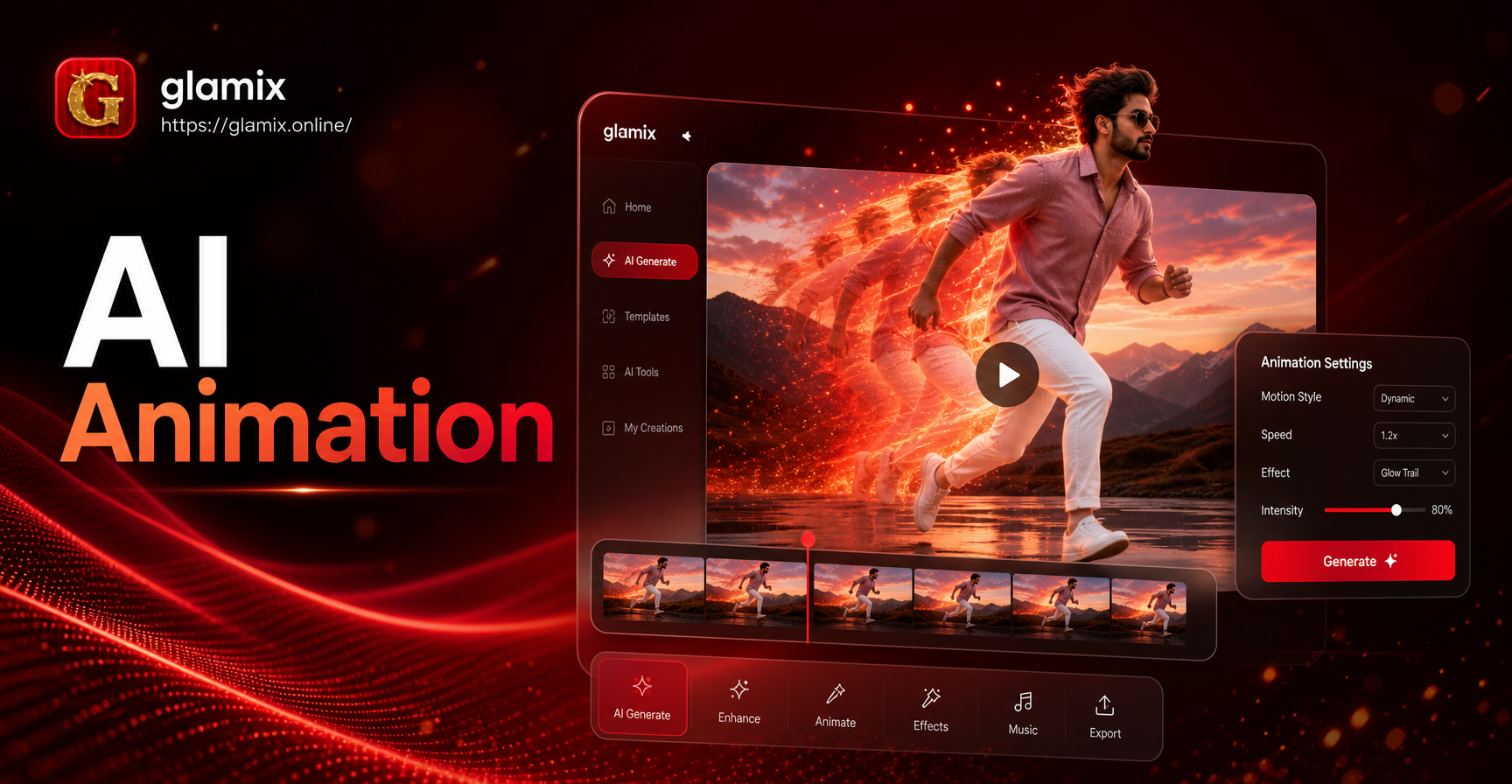
Still pictures hold a moment, but an animated picture makes that moment move. Learning how to animate pictures can turn a portrait into a lifelike clip, make a landscape feel like a short film, or create engaging social media content. Today, you do not need expensive software or animation skills. AI powered mobile apps can generate motion from a single image in seconds. This guide covers three practical methods: animating faces with motion effects, turning photos into short videos with camera moves, and using text prompts to create custom animations. You will also learn tips for realistic results and how to avoid common mistakes.
What You Need Before You Start
Start with a sharp, well lit photo. The clearer the subject, the better the AI can detect edges, faces, and depth. For portraits, make sure the face is visible and not covered by hair or shadows. For landscapes, choose a photo with a clear foreground and background. Most AI animation apps work on mobile phones, so download a reliable app like glamix from Google Play. glamix includes image to video tools that can blink, smile, turn heads, and animate still photos. You will also need a stable internet connection for processing.
Method 1: Animate a Face with AI Motion Effects
Face animation is the most popular way to animate pictures. It works best on portraits and selfies. The AI identifies the eyes, mouth, and head position, then adds natural motion. This is perfect for making an old family photo feel alive or creating a short reel for social media.
Step 1: Download an AI Animation App
Open Google Play and download a dedicated AI image animation app. glamix is a good option because it includes face animation filters and an easy interface. After installation, open the app and sign in if required.
Step 2: Upload Your Picture
Select the image to video or animate picture option. Choose a portrait photo from your gallery. The app will automatically detect the face and show a preview. If the face is not detected, use a brighter photo or crop the image to focus on the face.
Step 3: Choose a Motion Effect
Pick from effects like blink, smile, turn head, or nod. Some apps also offer combined effects that make the person look around and smile at the same time. In glamix, you can browse style templates and motion presets. Select one that matches the mood of your photo.
Step 4: Adjust the Intensity and Generate
Use the intensity slider if available. A lower value creates subtle motion, while a higher value makes the movement more noticeable. Tap generate and wait a few seconds. The AI will process the image and create a short video clip, usually 3 to 5 seconds long.
Step 5: Save and Share
Preview the result. If the motion looks natural, save it to your phone. If not, go back and adjust the effect or use a different photo. Share the animated picture directly to social media or messaging apps.
Method 2: Turn a Landscape or Object Photo into a Short Video
You can animate more than faces. Landscapes, food, products, and objects can also be brought to life with slow camera movements or particle effects. This method is great for travel photos, product showcases, and cinematic storytelling.
Add a Slow Zoom or Pan Effect
Many AI apps let you add a slow zoom in, zoom out, or pan across the image. This mimics a camera move and makes a still photo feel like a video clip. Choose the direction and speed that best fits the composition. A slow zoom toward the subject adds drama, while a gentle pan reveals more of the scene.
Animate Elements Like Water or Clouds
Some advanced AI tools can animate specific elements in a photo, such as flowing water, drifting clouds, or flickering lights. If your photo contains a river, ocean, or sky, try an element animation effect. The AI will keep the rest of the image still while only the selected area moves. This creates a realistic and mesmerizing result.
Method 3: Use Text to Video for Custom Animation
If you want full control over the animation, use a text to video feature. You describe the motion in plain English, and the AI generates a video based on your photo or a style template. This method is ideal for creating short narrative clips, product demos, or artistic effects.
How to Write a Simple Motion Prompt
Keep your prompt clear and action focused. Start with the subject, then describe the motion, camera angle, and style. For example, "a young woman turns her head slowly and smiles, soft studio lighting, gentle zoom in." This gives the AI enough detail to produce the movement you want.
Example Prompts You Can Try
Here are a few ready to use prompts for animating pictures. Replace the subject details with your own photo reference.
- Portrait of a man blinking and looking toward the camera, subtle head tilt, warm indoor light, slow motion.
- Mountain landscape with clouds drifting across the sky, slow pan from left to right, cinematic color grade.
- Cup of coffee with steam rising gently, close up shot, soft morning light, realistic motion.
- Group of friends laughing and turning toward each other, natural outdoor setting, candid video style.
How to Animate Multiple People in a Group Photo
Group photos can be tricky to animate because the AI must track multiple faces at once. Look for an app that supports multi person photo processing. glamix includes group photo animation tools that identify and separate different faces, so each person gets their own motion without blending. Upload the group photo, let the AI detect the faces, and choose a group effect like everyone turning, smiling, or waving. Keep the group size manageable, ideally under five or six people, for the best results.
Tips for Realistic Picture Animation
- Use high resolution photos with clear facial features.
- Avoid heavy filters or extreme angles before animating.
- Keep motion subtle. Small movements often look more natural than large ones.
- Choose an effect that matches the original photo's mood.
- Preview at low speed to check for distorted hands or eyes.
- Use a clean background so the AI focuses on the subject.
Common Mistakes and How to Fix Them
Blurry faces after animation. Use a sharper source photo and reduce the motion intensity.
Unnatural eye or mouth movement. Try a different effect or crop the photo so the face fills more of the frame.
Background warping around the subject. This happens when the AI struggles to separate the subject from the background. Choose a photo with strong contrast between the subject and background.
Group photo face blending. Use a dedicated multi person feature and keep the photo at a reasonable size. If the app supports it, refine each face manually before generating.
Frequently Asked Questions About Animating Pictures
Can I animate an old or damaged photo?
Yes. Many AI animation apps include photo restoration tools that can clean up scratches and improve clarity before adding motion. Use a restoration filter first, then animate the improved image.
Do I need any design skills to animate pictures?
No. Most AI animation apps are built for beginners. You upload a photo, select an effect, and tap generate. No timeline editing or keyframe knowledge is required.
How long does it take to animate a picture?
Most single photo animations take between 5 and 30 seconds to process, depending on the app and the complexity of the motion. Video generation may take longer for high resolution or multi person scenes.
Can I animate a picture on a computer instead of a phone?
Yes, some online tools work in a browser, but mobile apps like glamix are often faster and easier to use. The app handles all processing on its servers, so your phone does not need to be powerful.
Start Animating Your Pictures Today
Animating pictures is no longer a professional only task. With a clear photo, the right app, and a simple motion effect, you can create living memories in minutes. Start with a portrait, try a few face effects, and then experiment with landscapes and custom prompts. The more you practice, the better your results will be. Download a reliable AI animation app and bring your favorite pictures to life.